
Overview
Email Configuration
Connect your Gmail or Outlook account so event invitations come from your actual email address. Emails land in your sent folder, replies hit your inbox, and guests see a name they recognize.
If it looks automated. It lands in spam, and the relationship is over before the event starts.
Gatsby sends from your actual email account. The invite comes from you, lives in your sent folder, and replies go to your inbox.
Gmail or Outlook
Connect your account in two clicks. Best for relationship-driven events under 500 recipients.
SendGrid
DNS-level setup for high volume, custom addresses, and branded notification emails.
Sending From Your Own Account
Section titled “Sending From Your Own Account”Connect your Gmail or Outlook to send invitations from your actual address. Recipients see your name. Emails appear in your sent folder. Replies arrive in your inbox. Your IT team’s spam filters trust it because it comes from your domain.
An LP dinner invitation from “Sarah Chen” lands differently than one from “events@platformname.com.” That’s the whole point.
Connect Gmail
-
Navigate to Team Settings from your Gatsby dashboard.
-
Click the Linked Services tab.
-
Find Gmail and click Sign In With Gmail.
-
Select your account in the popup and accept permissions.
Your Gmail address is now available as a sender option in campaigns.
Connect Outlook
Works with personal Outlook.com accounts and corporate Office 365. Your Microsoft account must be cloud-hosted. Gatsby uses the Microsoft Graph API, which on-prem Exchange servers do not support.
-
Navigate to Team Settings from your Gatsby dashboard.
-
Click the Linked Services tab.
-
Find Outlook and click Link Outlook Account.
-
Enter your credentials when prompted.
Your Outlook address is now available as a sender option.
What Happens After You Connect
Once connected, any team member can select your address when composing a campaign. Emails appear in your sent folder. Replies come to your inbox unless the sender sets a different reply-to address.
You can revoke access anytime from Team Settings > Linked Services.
Sending Limits
Gmail caps around 500 emails per day. Office 365 varies by plan. Gatsby staggers sends to avoid looking like a mass emailer.
For personal, relationship-driven events, these limits rarely matter. A dinner invitation going to 80 people is well under the threshold. If you’re regularly sending to thousands, you need SendGrid.
Setting Up SendGrid
Section titled “Setting Up SendGrid”SendGrid requires DNS configuration. Your IT team adds records to your domain so Gatsby can send authenticated email on your behalf.
Setup Process
-
Contact Gatsby support. We provide SPF, DKIM, and DMARC records for your IT team.
-
Your IT team adds those records to your domain’s DNS.
-
Verify completion with Gatsby support.
-
In Team Settings > Linked Services, select SendGrid.
-
Click Add Account and enter your display name and email address.
That address is now available for campaigns.
What SendGrid Gets You
- No daily send limits. Send thousands without throttling.
- Custom addresses. Use events@company.com or invites@company.com. The inbox doesn’t need to exist.
- Notification emails from your domain. RSVP confirmations, waitlist notices, and event updates come from your brand instead of Gatsby’s.
- Deliverability tracking. Monitor opens, bounces, and delivery issues.
Who Needs SendGrid
Most teams start with Gmail or Outlook and add SendGrid when volume grows. You need it if you:
- Send more than 300-500 emails per day
- Want shared addresses like events@company.com that nobody logs into
- Need automatic notification emails (confirmations, waitlist, updates) from your domain
If you’re running an annual conference for 2,000 people, you need SendGrid. If you’re hosting a dinner for 40, Gmail works fine.
External Collaborators
Section titled “External Collaborators”External Collaborators don’t see Team Settings. They connect their email from within a campaign.
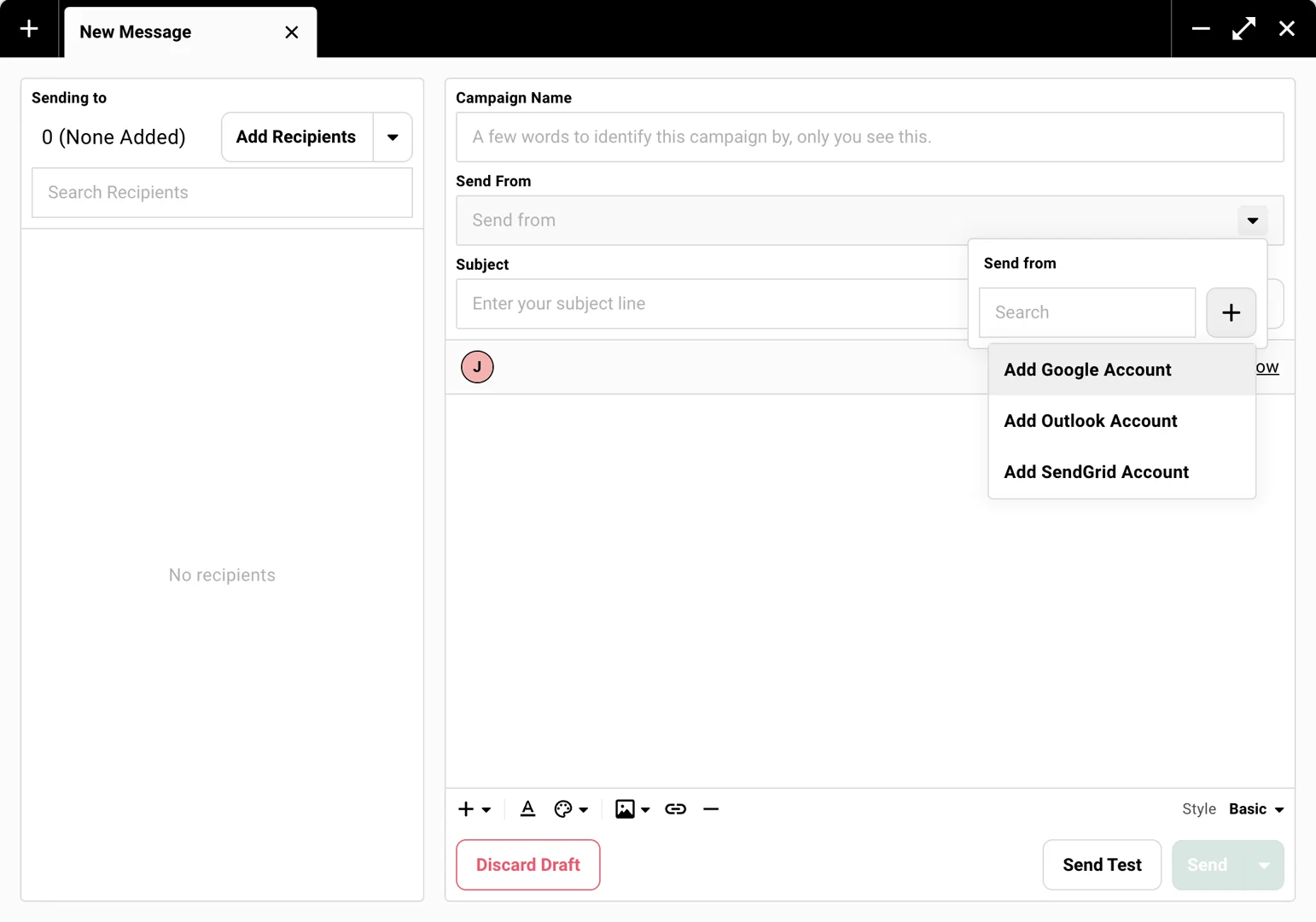
Open any campaign in an event you’ve been invited to, click the + icon next to the sender dropdown, and connect Gmail or Outlook directly. You can only send as yourself. You cannot access other team members’ accounts.
External Collaborators only see events they’ve been specifically invited to. They cannot send from other team members’ addresses or access the full Team Settings.
Common Questions
Section titled “Common Questions” Will sent emails appear in my sent folder?
Yes, for Gmail and Outlook. Emails appear in your sent folder automatically. For SendGrid, no. There’s no personal inbox to write to.
Can multiple people send from the same connected account?
Yes. Once someone connects their email, any team member can select that address as the sender. Your coordinator can send dinner invitations from the Partner’s email without the Partner touching Gatsby.
What's the difference between Gmail/Outlook and SendGrid?
Gmail and Outlook connect your personal account. Simple setup, daily limits, emails in your sent folder. SendGrid removes limits and adds custom addresses, but requires DNS configuration by your IT team.
What are notification emails?
Automatic emails triggered by guest actions: RSVP confirmations, waitlist notices, event updates. These require SendGrid to send from your domain instead of Gatsby’s.
Can I connect my email later?
Yes. Go to Team Settings > Linked Services anytime. Add more accounts as your team grows.
Does Outlook require cloud hosting?
Yes. Gatsby uses the Microsoft Graph API. On-prem Exchange servers are not supported. Your Outlook must be hosted through Office 365 or Outlook.com.