
Overview
Team & Permissions
Control who sees what across your events. Add team members with full access, limit External Collaborators to specific events, and give partners read-only views without logins.
Permission Levels
Section titled “Permission Levels”You’re co-hosting a dinner with another firm. They need to manage their half of the guest list. But they should never see your LP database or your other events.
Your EA needs to work across all your events. Your managing partner just wants to glance at who’s confirmed for Thursday.
Three different needs. Gatsby handles each with a different permission tier.
Admin
Full access to everything. All events, all contacts, all settings. No access requests needed.
What Admins can do:
- Add and remove team members
- Configure security settings, email permissions, and integrations
- Access any event or contact without requesting permission
- Manage workspace-level settings
Best for: Event leads, ops managers, platform owners.
Team Member
Can see all events but must request access to edit them. Full access to the contact database. Can create new events.
What Team Members can do:
- View all events in the workspace
- Request access to edit specific events
- Access the full contact database
- Create new events and lists
Best for: Regional teams, marketing coordinators, EAs who work across multiple events.
External Collaborator
Only sees events they’re specifically assigned to. Cannot see your contact database, cannot see other events, and doesn’t know they exist.
What External Collaborators can do:
- View and edit their assigned events
- Upload their own contacts to those events
- Edit landing pages and email templates
- Create and send campaigns (from their own email only)
- Work on seating charts
What they cannot do:
- See your contact database
- View other events in your workspace
- Create new events
- Remove guests from guest lists
- Send emails as other team members
Best for: Co-hosts, vendors, design agencies, partners.
Not Everyone Needs a Login
Section titled “Not Everyone Needs a Login”Your managing partner wants to see who’s coming to Thursday’s dinner. Your caterer needs the dietary restrictions list. Your CFO wants to review the guest list before invitations go out.
None of them need to edit your event. Give them a read-only guest list view instead.
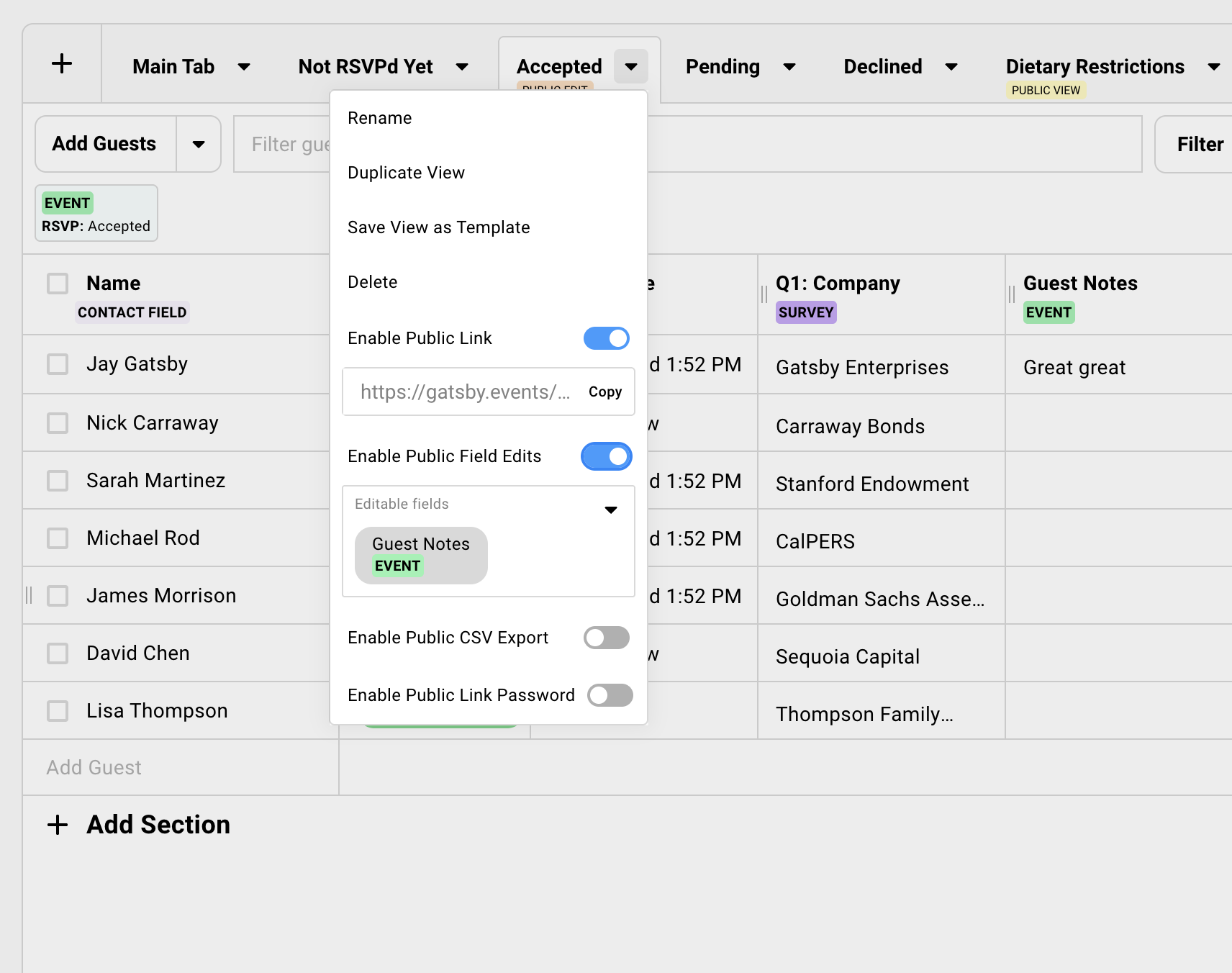
Views are shared links. No login, no password, no risk of accidental changes. They always show the current state of the list, updated in real time.
You control what’s visible. Show names and dietary needs to the caterer, hide email addresses entirely. Enable CSV export if they need to pull data into their own system.
Use read-only views for:
- Executives who want oversight without involvement
- Vendors who need specific data (catering, A/V, printing)
- Partners where full External Collaborator access is more than they need
- Anyone who just needs to see, not edit
Setting Up a Guest List View
-
Open your event’s guest list.
-
Configure a view with the columns you want visible. Hide emails if needed.
-
Click Enable Public Link and copy the public link.
-
Send the link to whoever needs access.
They’ll see current data, updated in real time, with no login required.
Common Workflows
Section titled “Common Workflows” Co-hosted Events with Partner Firms
Invite your co-host’s event lead as an External Collaborator. They upload their contacts, see the combined guest list, and help manage registration.
Your other events and contacts stay invisible to them.
Design Agencies Working on Templates
Create a sandbox event with no real contacts. Add your designer as an External Collaborator.
They build landing pages and email templates directly in Gatsby without accessing your production events or data.
Chapter Leads in Membership Organizations
Each regional chapter lead gets External Collaborator access to their city’s events. They manage their local community without seeing national membership data or other chapters’ events.
HQ admins maintain full visibility across everything.
Partner Contact Uploads via Parent-Child Events
Create a child event under your main event. Add your partner as an External Collaborator on the child only.
They upload their contacts there. Those contacts automatically sync to the parent event. The partner never sees your full guest list or other child events.
A Note on Data Security
Section titled “A Note on Data Security”External Collaborators can send emails to everyone in their assigned events. There’s no way to fully prevent email addresses from being captured if someone wanted to.
This role requires a baseline of trust. For partners where email exposure is a concern, use read-only guest list views instead. Emails can be hidden, and no login is required.
Adding Team Members
Section titled “Adding Team Members”Add team members and External Collaborators from the Team Members page in your account settings.
Adding a New Team Member
-
Navigate to Team Members from your main dashboard.
-
Click Add Member.
-
Enter their email address and name.
-
Choose their permission level: Team Member for internal staff who need broad access, or External Collaborator for partners, vendors, and co-hosts.
-
They’ll receive an email invitation to join your workspace.
Promoting to Admin
Only Admins can promote Team Members to Admin level.
From the Team Members page, find the person and use the dropdown under Team Permissions to change their role.
Adding External Collaborators from an Event
You can also add External Collaborators directly from an event.
Open the event, click the three-dot menu or the + button, and select Add Collaborators. This adds them to your workspace as an External Collaborator with access to that event.
Common Questions
Section titled “Common Questions” Can External Collaborators send emails?
Yes. They can send campaigns from their own connected email account to guests in their assigned events. They cannot send as other team members.
Can I hide email addresses from External Collaborators?
Not fully. External Collaborators can see and email guests within their events.
If you need to share guest data without exposing emails, use a read-only guest list view with the email column hidden.
Can I control who sends from which email address?
Yes. Contact support to enable strict sending permissions.
Once enabled, Admins control which team members can send from which connected email accounts. Team Members only send from addresses they’ve been explicitly granted. External Collaborators can only send as themselves.
Use case: The Partner’s EA sends dinner invitations from the Partner’s address while other team members cannot.
How should small teams set up permissions?
Small, trusted teams often make everyone an Admin. No access requests, everyone works on any event.
As your team grows or you start working with outside partners, add Team Members who request access and External Collaborators for outside partners.
How do I give someone view-only access?
Use a guest list view instead of adding them as a team member. Configure a view with the columns you want visible, click Share, and send them the link. No login needed.