
Overview
Affinity Integration
Sync RSVP and attendance data to Affinity CRM automatically. Build guest lists from Affinity contacts and push event participation back without manual data entry.
List-to-List Syncing
Section titled “List-to-List Syncing”IR teams build guest lists in Affinity. They filter by relationship strength, tag by LP type, curate the invite list where their knowledge already lives.
But they need Gatsby’s event tools for the rest. Branded invitations. Registration pages. Check-in. Calendar invites. Seating charts.
List-to-List syncing connects an Affinity list directly to a Gatsby event. Add someone in Affinity, they show up in Gatsby. Remove them from Gatsby, they’re removed from Affinity. No exports, no imports, no lag.
What syncs bidirectionally
Names, email addresses, and presence on the guest list sync both directions in near real-time. Add a contact to the Affinity list, they appear in your Gatsby guest list. Remove a guest in Gatsby, they disappear from the Affinity list.
RSVP and attendance data still flows one direction only: from Gatsby to Affinity. Gatsby captures event participation and pushes it back to your CRM.
Connecting a list to an event
-
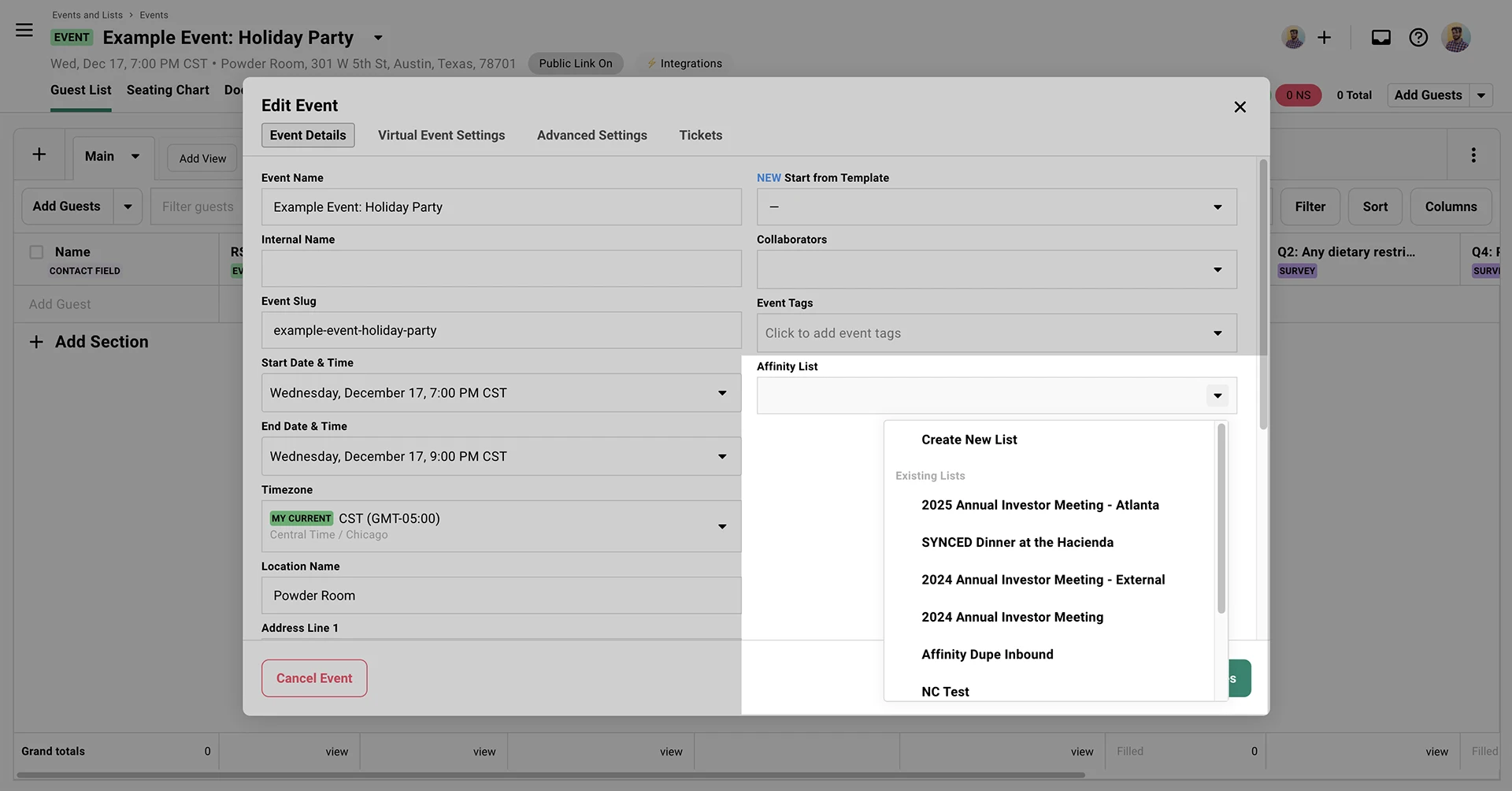
Open your event in Gatsby.
-
Go to Event Details (the settings panel).
-
Select an Affinity list from the dropdown.
-
Click Save.
The sync begins immediately. Existing contacts on the Affinity list appear in your Gatsby guest list.
What Syncs to Affinity
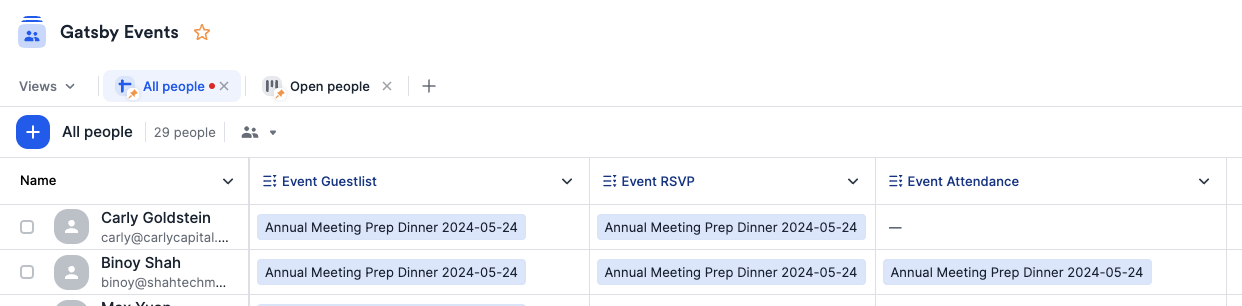
Section titled “What Syncs to Affinity”The integration pushes event participation data from Gatsby to Affinity. Three fields update automatically on each contact’s record:
- Guest List records every event where a contact appeared on the guest list, regardless of RSVP or attendance status.
- RSVP records events where a contact accepted their invitation. Declines and maybes don’t appear here.
- Attendance records events where a contact was checked in. Ground truth of who showed up.
Each field stores event names as values. Run five events, and an active guest’s Attendance field shows all five names.
What doesn’t sync
Section titled “What doesn’t sync”The integration doesn’t pull contact enrichment down from Affinity. Company, title, dietary restrictions, custom fields: none of it transfers automatically. Gatsby captures event data and ships it back. Affinity stays your source of truth for contact details.
For enriched guest lists, export contacts from Affinity as CSV (with the fields you need for your event) and import them into your Gatsby guest list. Email addresses match existing contacts automatically. See the Import/Export documentation for CSV workflows.
Event Tags
Section titled “Event Tags”Tags let you group attendance data beyond individual event names. Create tags in Gatsby’s team settings and apply them to events. When a guest checks in, both the event name and its tags sync to their Affinity record.
Use cases
- Quarterly tracking: Tag events as “Q3 2024” to report attendance across a quarter
- Event series: Tag all investor dinners as “Investor Dinner Series” for series-level analysis
- Regional grouping: Tag events as “NYC” or “London” for geographic filtering
- Event type: Tag as “AGM” or “LP Meeting” for category-level reporting

Initial Setup
Section titled “Initial Setup”You need your Affinity API key and a dedicated list in Affinity to store the field mappings.
Step-by-step setup
-
Go to Team Settings > Linked Services > Affinity in Gatsby.
-
Get your Affinity API key from your Affinity account settings.
-
Paste the API key in Gatsby and click Connect.
-
Create a list in Affinity called “Gatsby Events” (Build from Scratch, People type).
The Affinity integration requires an additional subscription. Contact us on Slack or email for pricing details.
Field Configuration
Section titled “Field Configuration”Create dropdown fields in Affinity, then map them in Gatsby’s integration settings.
Creating Affinity fields
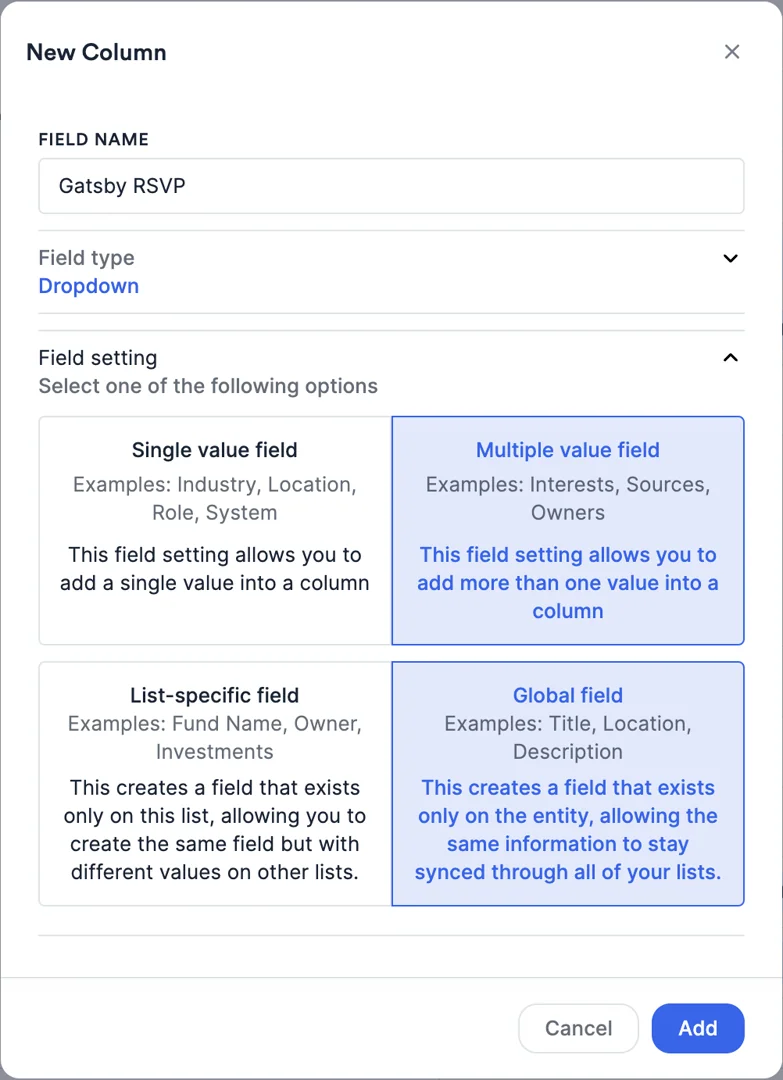
In your Affinity “Gatsby Events” list, create three fields:
- Guest List (Multiple Value Dropdown, Global or List Field)
- RSVP (Multiple Value Dropdown, Global or List Field)
- Checkin (Multiple Value Dropdown, Global or List Field)
These fields store the event names where each contact appeared.
Mapping fields in Gatsby
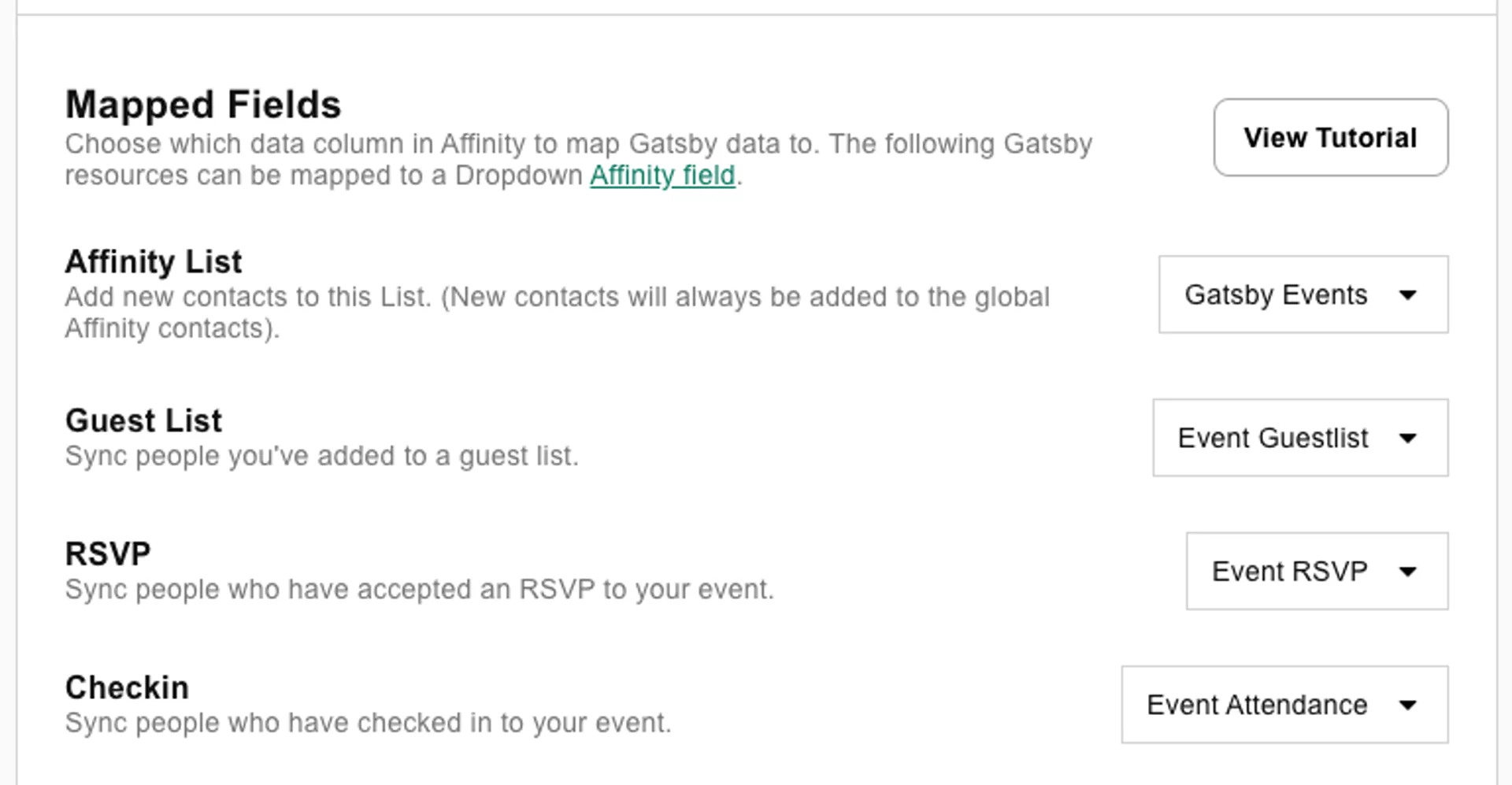
-
Return to Team Settings > Linked Services > Affinity in Gatsby.
-
Select your “Gatsby Events” list from the dropdown.
-
Map each field: Guest List, RSVP, and Checkin to the corresponding Affinity fields you created.
-
Click Save.
Event data syncs automatically from this point. Guests who RSVP or check in update in Affinity within seconds.
Common Questions
Section titled “Common Questions” Does this cost extra?
Yes. The Affinity integration is an add-on to standard Gatsby pricing. Contact us on Slack or email for current pricing.
Can I connect multiple Affinity lists?
Each event connects to a different Affinity list. Configure the connection per-event in Event Details.
You cannot connect multiple lists to a single event.
When does data sync?
Immediately. Changes appear in Affinity within seconds when guests RSVP, check in, or get added to a guest list. No manual sync button. No batch process.
Affinity integration requirements
- API key from your Affinity account
- Multiple Value Dropdown fields on a People-type list
- Gatsby add-on subscription