
Overview
Altvia Integration
Sync investor events and LP engagement with Altvia. Track AGMs, fundraising events, and investor relationships through Altvia Functions with automatic RSVP and attendance sync.
How It Works
Section titled “How It Works”After every AGM or investor dinner, someone on your team manually updates Altvia with who showed up. Maybe that week, maybe three weeks later. When the GP asks about LP engagement at the next IC meeting, the data has gaps.
Gatsby sits between your event and your CRM. It captures RSVPs when LPs respond, records attendance at the door, and handles the messy parts (walk-ins, plus-ones, name corrections). Clean records push back to Altvia automatically.
The integration maps directly to Altvia’s data model. Gatsby events become Functions. Guests become Function Attendees. RSVP and attendance status land on the fields your IR team already reports from.
What Syncs
Section titled “What Syncs”Altvia runs on Salesforce, so the sync mechanics match the Salesforce integration. The difference is terminology. Functions instead of Campaigns. Function Attendees instead of Campaign Members.
RSVP Status
When an LP responds to your invitation, their status updates on their Function Attendee record in Altvia.
Values: None, Invited, Declined, Accepted, Waitlist, Maybe
Attendance Status
Check-in data syncs to Function Attendees. Ground truth of who walked through the door.
Values: N/A, Yes, No Show
Function Attendee Management
Adding or removing guests in Gatsby updates Function Attendee lists in Altvia. The reverse works too. Add someone to a Function in Altvia, and they appear on your Gatsby guest list.
The integration matches on email address to prevent duplicate contacts.
Contact Field Updates
When investors update their company or title during registration, those changes can sync back to their Salesforce Contact record in Altvia. First-party data from the LP, not a third-party enrichment database.
You control the sync direction per field. Options are Sync (bidirectional), Enrich (fill blanks only), and One-Way (Gatsby to Altvia). See the Salesforce integration for details on each mode.
Linking Events to Functions
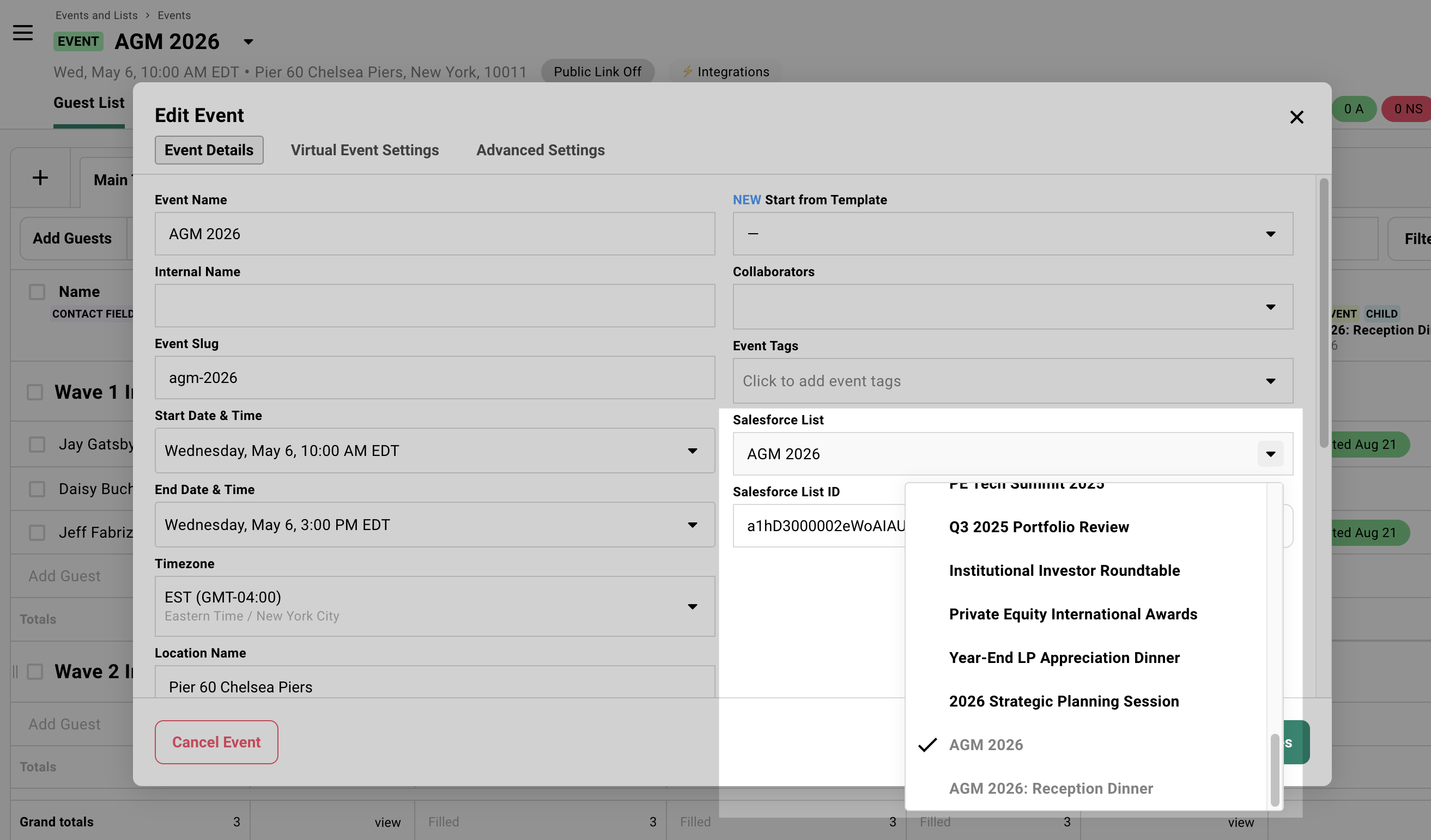
Section titled “Linking Events to Functions”Each Gatsby event connects to one Altvia Function. Once linked, guests become Function Attendees and all RSVP and attendance data syncs to their record.
Connecting to an Existing Function
-
Open your event in Gatsby.
-
Go to Event Details.
-
Select an Altvia Function from the dropdown.
-
Save.
Creating a New Function from Gatsby
-
In Event Details, click Create New instead of selecting existing.
-
Name the Function.
-
Optionally select a parent campaign.
-
Save. The Function creates in Altvia automatically.
Prerequisites
Section titled “Prerequisites”These apply to any Salesforce-based integration, including Altvia.
Marketing User Checkbox
The Salesforce user connecting the integration needs Marketing User enabled on their profile. This is off by default. Your Salesforce admin has to turn it on.
Without it, the OAuth flow completes successfully but nothing syncs. It fails silently.
Change Data Capture
In Salesforce Setup, search “Change Data Capture” and move these objects to Selected Entities:
Function__cFunction_Attendee__cContact
If you also use standard Campaigns alongside Altvia Functions, add Campaign and Campaign Member too.
Security
Gatsby is SOC2 Type 2 compliant. The integration uses OAuth for authentication. No passwords stored.
The Altvia integration requires an additional subscription. Contact us on Slack or email for pricing.
Connect Salesforce
Section titled “Connect Salesforce”-
Go to Team Settings > Linked Services > Salesforce in Gatsby.
-
Click Connect Salesforce.
-
Enter your Salesforce Login URL (typically
https://login.salesforce.com). -
Authenticate with a user that has Marketing User enabled.
-
Authorize Gatsby to access Salesforce.
For full details on field creation (RSVP Status and Attendance Status picklists on Campaign Members) and fallback account configuration, see the Salesforce setup guide.
Custom Object Mapping
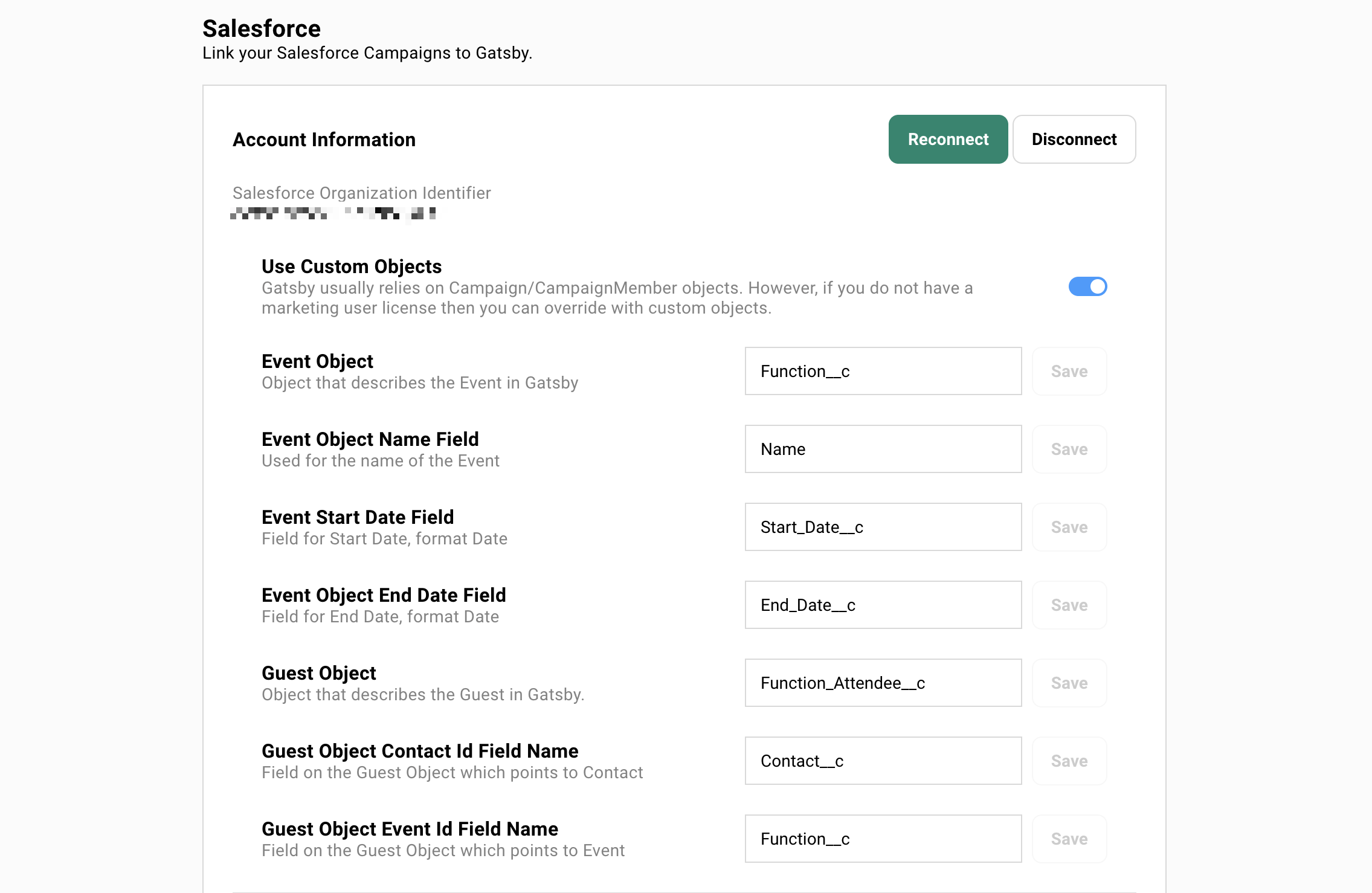
Section titled “Custom Object Mapping”After the Salesforce connection is live, configure Gatsby to use Altvia’s custom objects instead of standard Campaigns.
-
Go to Team Settings > Linked Services > Salesforce.
-
Toggle Use Custom Objects to ON.
-
Map the fields:
- Event Object:
Function__c - Event Object Name:
Name - Event Start Date:
Start_Date__c - Event End Date:
End_Date__c - Guest Object:
Function_Attendee__c - Guest Contact ID:
Contact__c - Guest Event ID:
Function__c
- Event Object:
-
Save.
Fallback Account
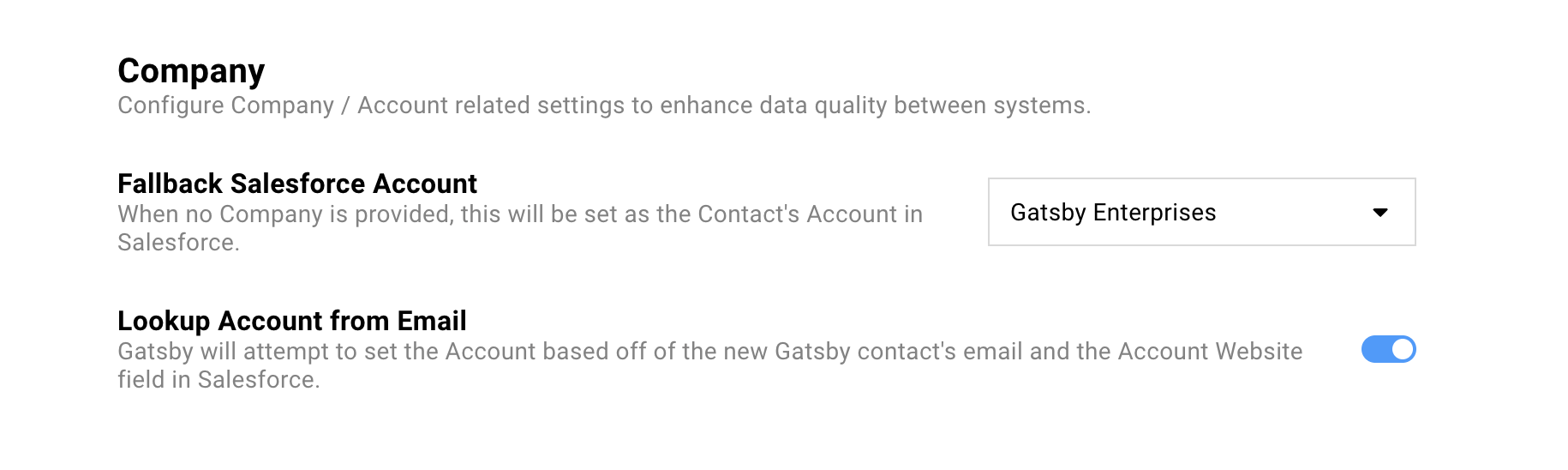
Section titled “Fallback Account”New contacts need a Salesforce Account. When Gatsby creates a Contact that doesn’t match an existing Account, it assigns them to a fallback.
Most PE/VC firms use something generic like “Event Registrations” or “Gatsby Contacts.” Your team reassigns new contacts to the right Accounts in Altvia after the event.
Configure this in Team Settings > Linked Services > Salesforce under Fallback Account.
Common Questions
Section titled “Common Questions” What if we use both standard Campaigns and Altvia Functions?
The integration supports both. When you link an event, the dropdown shows standard Campaigns and Functions side by side. Pick the right one for each event.
When does data sync?
Most updates sync in seconds. Check in an LP at your AGM and their Function Attendee record updates before they reach their seat.
Bulk operations (CSV imports, mass RSVP updates) sync in batches every few minutes.
Does this cost extra?
Yes. The Altvia integration is an add-on subscription. Contact us for pricing.
How does de-duplication work?
The integration matches on email address. If a Contact with that email already exists in Salesforce, Gatsby updates that record instead of creating a new one.