
Overview
Attio Integration
Connect Gatsby event activity to Attio through automatic Google sync and webhooks. Track invitations, RSVPs, and attendance in your CRM without manual exports.
Two Data Paths
Section titled “Two Data Paths”Gatsby connects to Attio through two complementary approaches. Google sync captures communication history automatically. Webhooks push structured participation data through Zapier or Make.
Google sync gives you the timeline: invitation emails, calendar responses, follow-ups. Webhooks give you the queryable data: RSVP status, attendance records, event names and dates. Most teams use both.
How It Works
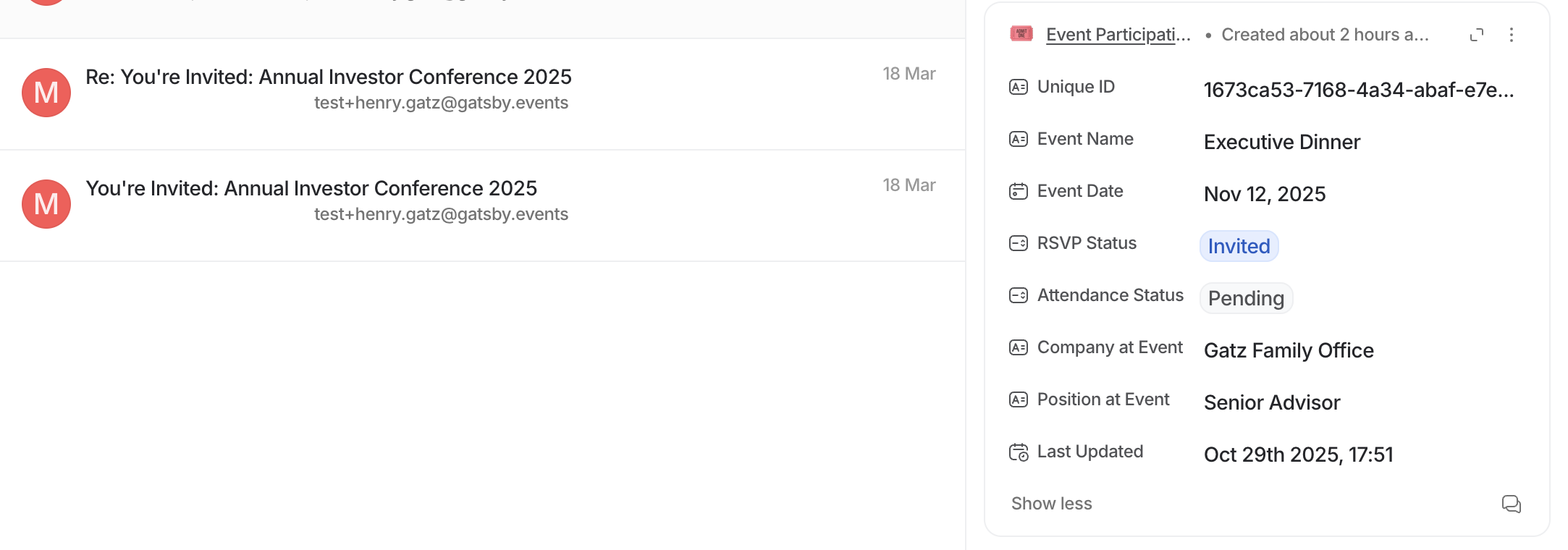
Section titled “How It Works”Gatsby sends event invitations from your actual Google account, not from a generic platform address. Same with calendar invites. Since Attio syncs your Google activity, event communications appear in contact timelines without any configuration on the Gatsby side.
Click into a Person record in Attio. The invitation you sent last Tuesday. The calendar invite they accepted. The follow-up you sent the day before the dinner. All there without an export.
Requirements
Section titled “Requirements”Three things must be connected for automatic sync.
Setup checklist
In Gatsby:
- Email sender set to a connected Google account
- Calendar organizer set to a connected Google account
In Attio:
- Same Google user connected for email and calendar sync
For step-by-step instructions on connecting Google accounts to Gatsby, see Sending Emails.
What syncs and what doesn't
Captured automatically:
- Invitation emails sent from connected Google accounts
- Calendar invites where organizer is a connected Google account
- Follow-up emails and replies
Not captured (use webhooks for these):
- System emails like RSVP confirmations (sent from Gatsby, not your Google)
- RSVP status
- Attendance data
- Registration form responses
What You Can Capture
Section titled “What You Can Capture”Webhooks send structured event data that you control.
- Who was invited to which events
- RSVP status changes (Accepted, Declined, Waitlist, Maybe)
- Attendance records (Attended, No Show)
- Registration form responses
- Guest company and title at time of event
- Event details (date, name, location)
Recommended: Event Participation List
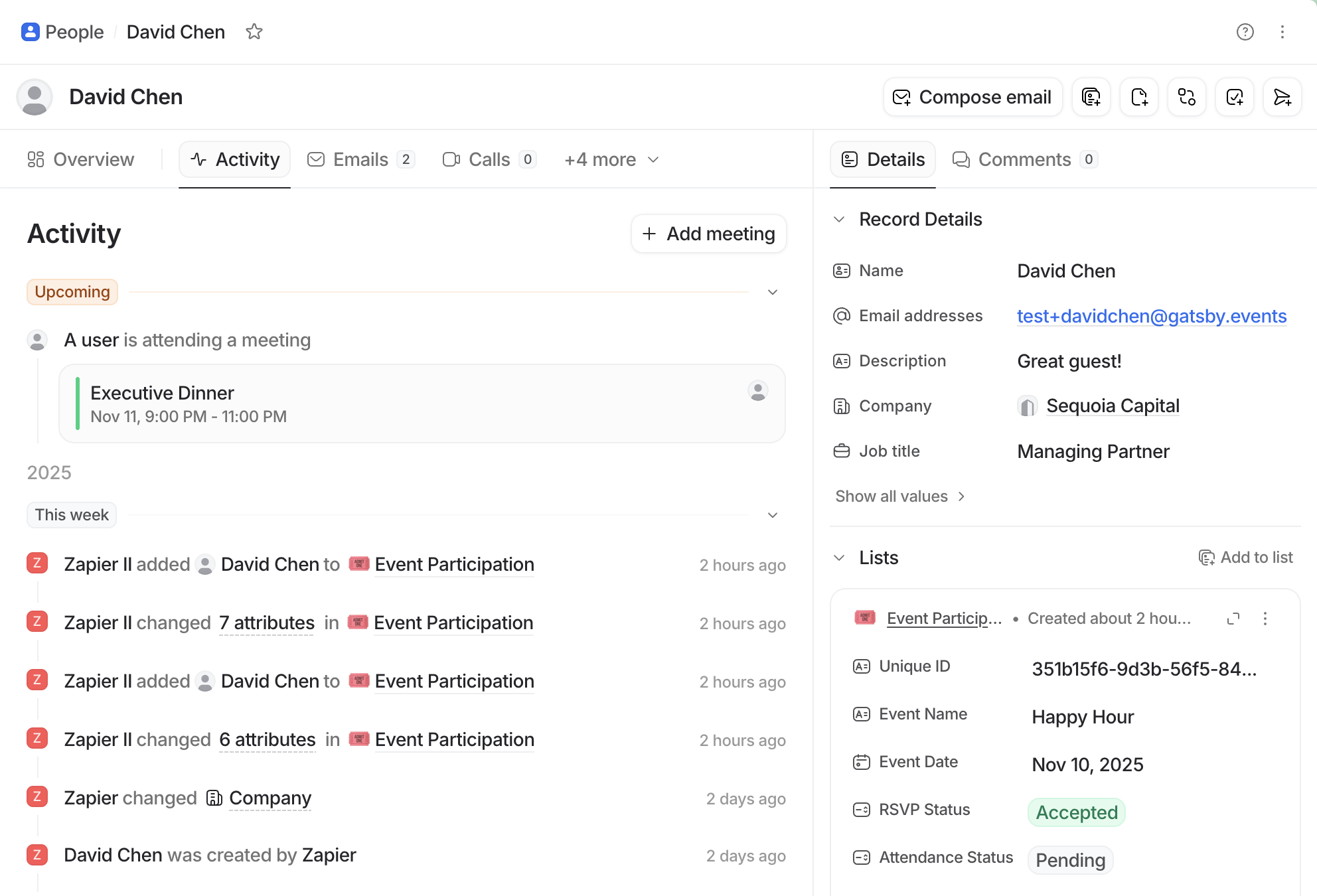
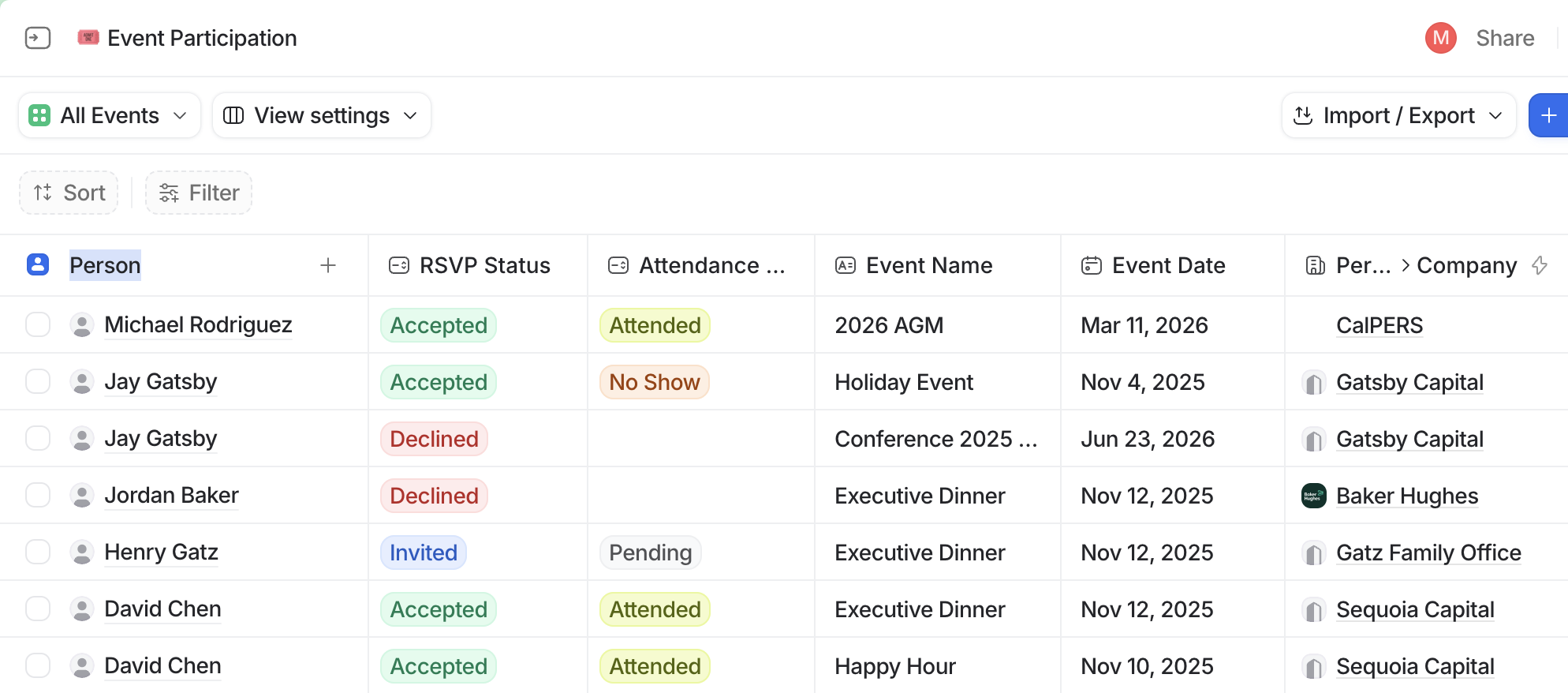
Section titled “Recommended: Event Participation List”Create an “Event Participation” list in Attio. Each entry represents one person at one event, linked to their Person record.
Suggested fields
| Field | Type | Purpose |
|---|---|---|
| Person | Record Reference | Links to the Person record |
| Unique ID | Text | De-duplication (combine person ID + event ID) |
| Event Name | Text | Name of the event |
| Event Date | Date | When the event happens |
| RSVP Status | Select | Invited, Accepted, Declined, Waitlist |
| Attendance Status | Select | Attended, No Show, Pending |
| Company at Event | Text | Guest’s company at time of event |
| Position at Event | Text | Guest’s role at time of event |
The Unique ID field matters. Combine the person ID and event ID (like abc123_xyz789) so each person gets exactly one entry per event. Multiple events create multiple entries.
Queries this enables
- All people who attended events in the last year
- Contacts invited to 5+ events but never attended
- Attendance by company
- No-show patterns
- Guests who accepted but didn’t show up
Other data model options
The Event Participation list is a starting point. You can also update attributes directly on Person records (simpler, less queryable), create custom objects, or build whatever fits your existing Attio setup. Webhooks send raw data. You decide where it goes.
Requirements
Section titled “Requirements” What you need
- Paid middleware plan. Zapier Pro or higher, Make, or n8n.
- Attio API credentials. For your middleware connection.
- Webhooks enabled in Gatsby. Contact support to enable: Email copied to clipboard
Workflow Overview
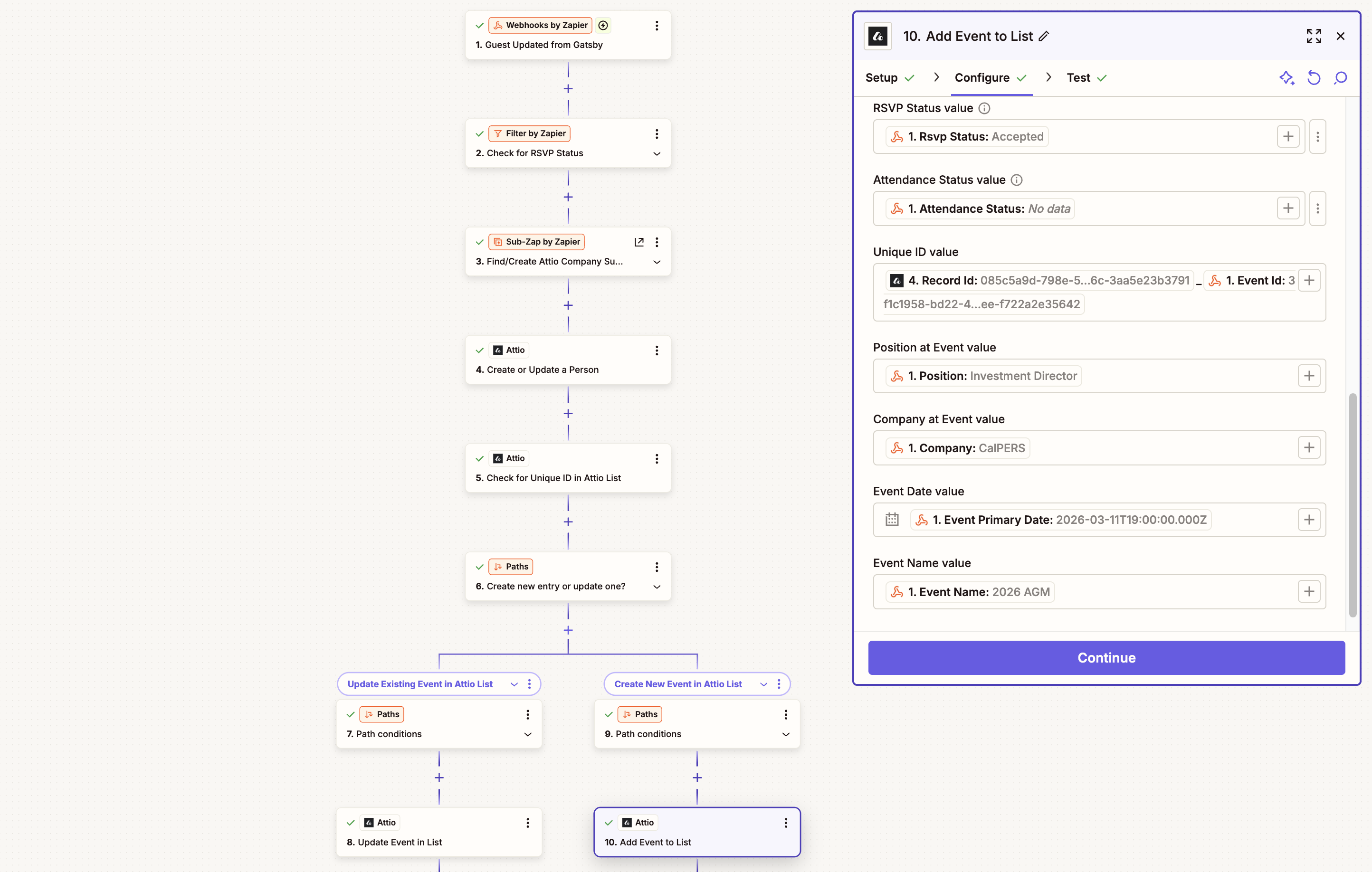
Section titled “Workflow Overview”The core workflow: Gatsby sends guest data via webhook, your middleware creates or updates the corresponding record in Attio.
Workflow steps
-
Trigger: Webhook receives guest data from Gatsby when someone is invited or updates their RSVP.
-
Create/Update Person: Match by email address in Attio. Create if new.
-
Search for existing list entry: Check for Unique ID match to prevent duplicates.
-
Update or create: If the entry exists, update RSVP or attendance status. If new, create an entry for this person/event combination.
Post-event bulk sync (alternative)
Instead of real-time webhooks, trigger manually after event cleanup. Process all guests at once. This gives you control over when event data flows to Attio and lets you verify data before it syncs.
Common Questions
Section titled “Common Questions” Do I need both Google sync and webhooks?
No, but they complement each other. Google sync gives communication timelines automatically. Webhooks give structured data for reporting. Most teams use both.
Google sync isn't capturing some emails. Why?
Check that both the email sender and calendar organizer in Gatsby are set to connected Google accounts. System emails like RSVP confirmations don’t sync because they send from Gatsby, not your Google account.
Can I capture custom registration responses?
Yes. Registration form responses come through webhook data. Map them to attributes or list entries in Attio.
Can I sync Attio contacts TO Gatsby?
Yes, though it requires more setup. Gatsby’s API lets you pull contact data from Attio. Contact support for details:
Is there a native integration?
Not yet. Attio integration uses webhooks through Zapier, Make, or n8n. Google sync is automatic if you use connected Google accounts.
How do I test my webhook integration?
Add a test guest to an event and mark as Invited. Verify the Person and list entry appear in Attio. Then change the RSVP status and confirm the same entry updates without creating a duplicate. For webhook data schemas and field mapping details, contact support: